Turn on the Xbox with Alexa

Control Xbox with Alexa
When Xbox 360 came out with the Kinect my favorite feature was the voice control feature. I was able to turn on and off the Xbox by saying “Xbox on” or “Xbox off”. Because the voice feature was part of the Kinect, this feature sort of went away with the Xbox one since the Kinect was no longer offered with the Xbox one. Now you can get the same voice control without the Kinect. Here are two ways you can enable this feature.
Enable Voice controls on the Xbox

First Enable instant on in the power settings.
Go to the settings on the Xbox

Enable Digital assistants:
Under the Devices Streaming section, Click Digital assistants

Check the box to “Enable digital assistants”
Now that you have enabled the Virtual assistants you can control the Xbox One with voice commands. Your choices are using Microsoft Cortana or Amazon Echo.
Using Cortana
Microsoft added the built-in voice assistant Cortana but you will need to use a mini microphone or headset plugged into a controller in order to access the feature. With the Xbox in instant-on mode enabled, you can say “Hey Cortana, ” followed by a command such as:

- “Hey Cortana, tell Xbox to pause”
- “Hey Cortana, tell Xbox to resume”
- “Hey Cortana, tell Xbox to turn up volume”
- “Hey Cortana, tell Xbox to turn volume down 5”
- “Hey Cortana, tell Xbox to turn off”
- “Hey Cortana, tell Xbox to launch Rocket League”
- “Hey Cortana, tell Xbox to launch Netflix”
- “Hey Cortana, tell Xbox to start broadcasting”
- “Hey Cortana, ask Xbox what I can say”
For a full list of commands see the Microsoft Xbox site.
Using Alexa
Now you can use your Amazon Echo to send the Xbox voice commands without a microphone or controller. After enabling Instant On and Virtual Assistants as the steps above, you need to setup the Echo to connect to your Xbox.
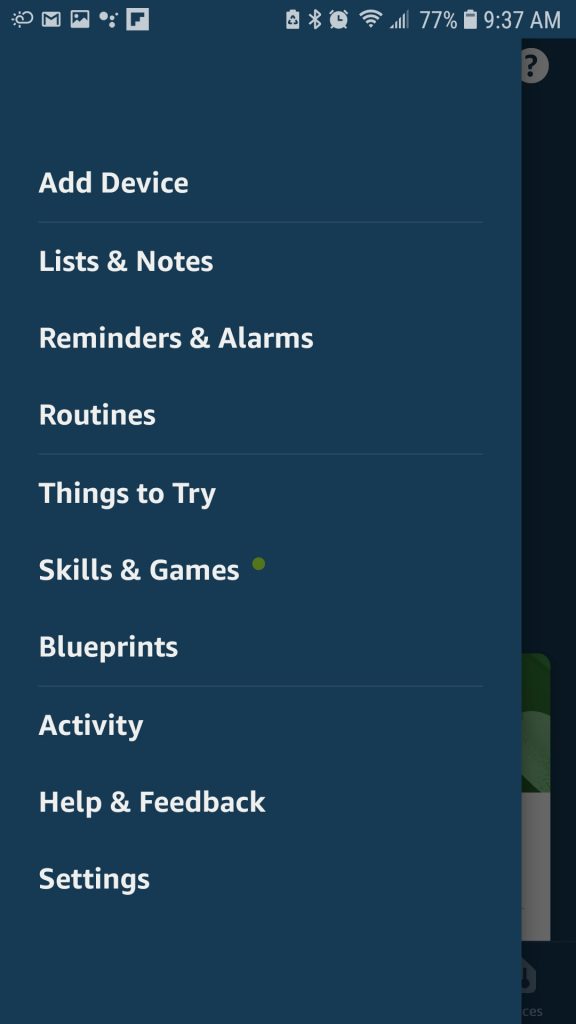
Open your Amazon Alex app on your phone
Go to Skills and Games
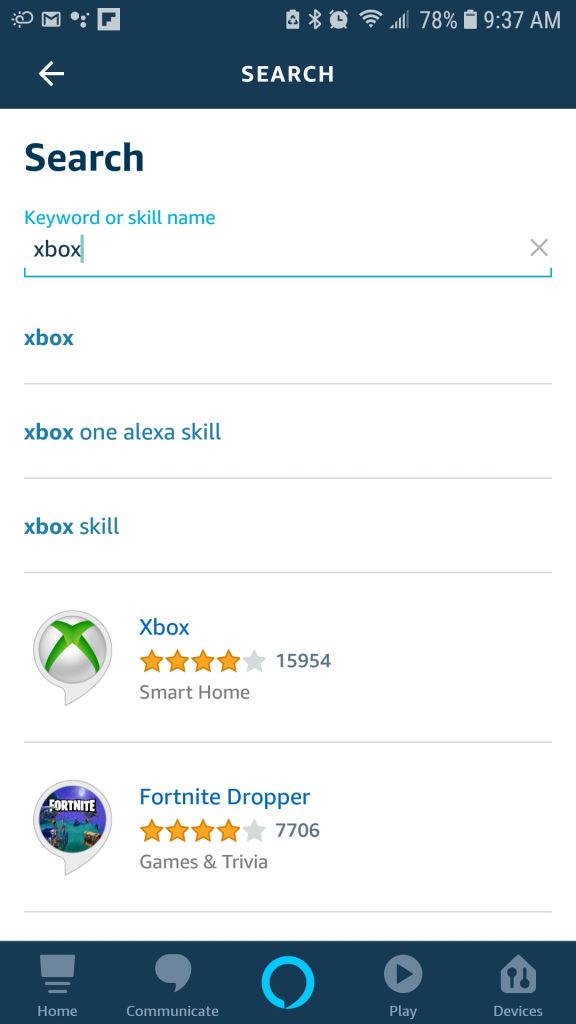
Search for “Xbox” and install the Xbox skill.
Ensure your Xbox is turned on and is on the network.
The app will search your WiFi for the Xbox.
When the Xbox is discovered, the app will ask you to choose an Echo device to link the Xbox with. If you have multiple Echos choose the one closest to your Xbox
Now you should be able to use the Echo and say:
- “Alexa, tell Xbox to pause”
- “Alexa, tell Xbox to resume”
- “Alexa, tell Xbox to turn up volume”
- “Alexa, tell Xbox to turn volume down 5”
- “Alexa, tell Xbox to turn off”
- “Alexa, tell Xbox to launch Rocket League”
- “Alexa, tell Xbox to launch Netflix”
- “Alexa, tell Xbox to start broadcasting”
- “Alexa, ask Xbox what I can say”
Another useful command that works with both voice assistants is “Launch Navigation Mode”. With this enabled you can say “UP, DOWN, LEFT, RIGHT, A Button, B Button, X Button,Y Button and it will execute the corresponding controller buttons. Very handy when you want to move around the Hulu or Netflix menu.
